Crafting Sample Alerts in Microsoft Defender for Cloud: A Quick Guide
Crafting Sample Alerts in Microsoft Defender for Cloud: A Quick Guide
Introduction
Welcome to our quick guide on creating sample alerts in Microsoft Defender for Cloud! This powerful security tool offers comprehensive protection for your cloud resources, but effectively utilizing its capabilities requires understanding how to set up and manage alerts. This blog post will walk you through the steps to create sample alerts, enabling you to test and familiarize yourself with Defender for Cloud’s alerting system.
Step 1: Accessing Defender for Cloud
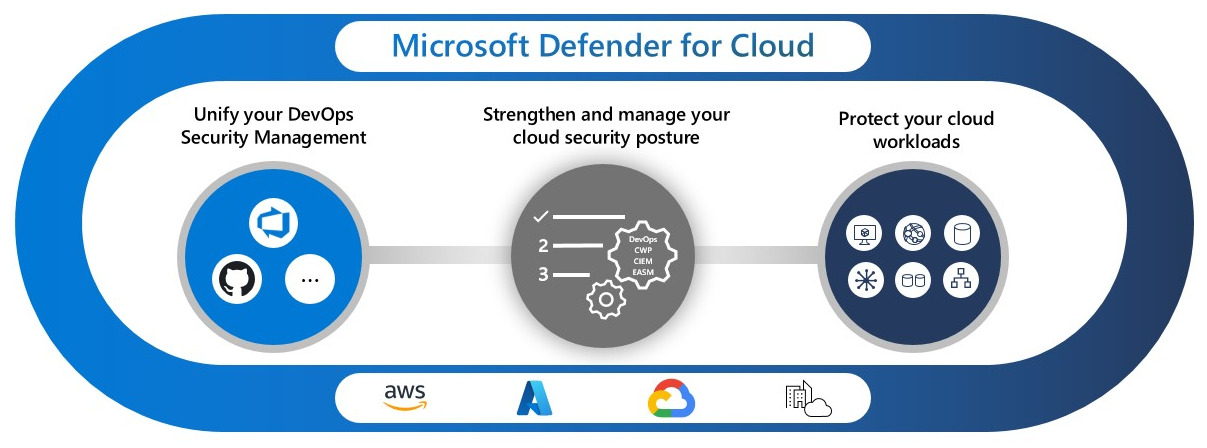
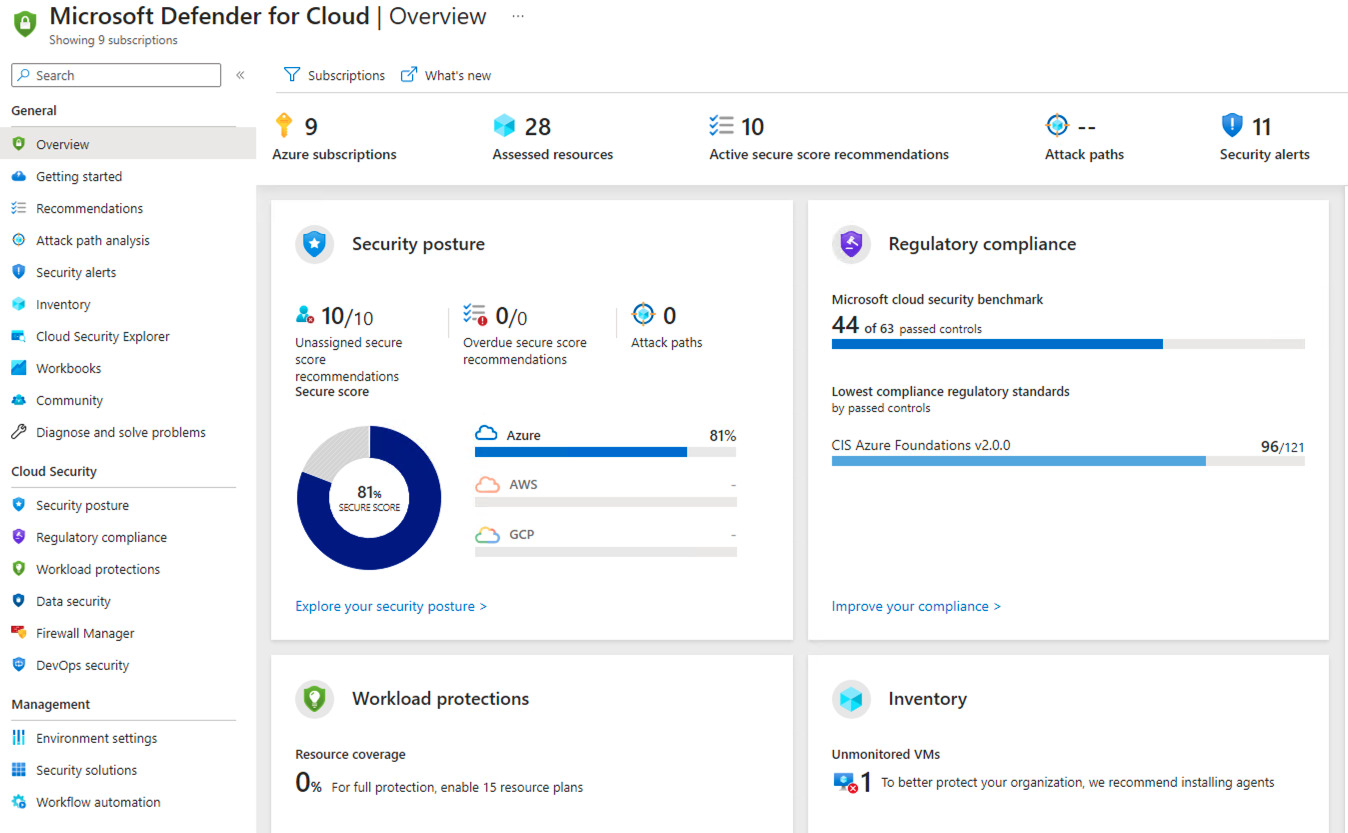
To start, log in to your Azure portal. Once in, navigate to Microsoft Defender for Cloud. This area serves as your central hub for monitoring the security of your cloud resources.
Step 2: Understanding Alert Policies
Before creating alerts, it’s crucial to understand the types of alerts available and what they signify. Defender for Cloud provides various alert types based on the nature of the detected threat. Familiarize yourself with these to better tailor your sample alerts to specific scenarios.
Defender for Cloud has the following alert types available
- Security Alerts: These are generated when Defender for Cloud identifies a potential security threat. They can be based on various signals like suspicious activities, known attack patterns, or anomalies detected in your environment. Security alerts are further categorized based on severity (High, Medium, Low) to help prioritize response efforts.
- Policy Compliance Alerts: These alerts are triggered when your resources are not compliant with the security policies you have set or the standards recommended by Microsoft. They help ensure that your configurations adhere to best practices for security and governance.
- Regulatory Compliance Alerts: Similar to policy compliance, these alerts notify you when there’s a deviation from regulatory compliance standards that your organization needs to adhere to. This is crucial for maintaining compliance with laws and regulations like GDPR, HIPAA, etc.
- Resource Health Alerts: These alerts provide information about the operational health of your cloud resources. They can notify you about issues like service outages, performance degradation, or connectivity problems.
- Vulnerability Assessment Alerts: When Defender for Cloud’s vulnerability scanner identifies potential vulnerabilities in your resources, such as unpatched software or insecure configurations, it generates these alerts. They are critical for proactive security management.
- Threat Protection Alerts: These are specific alerts that identify active threats against your resources, such as malware infections, phishing attempts, or brute force attacks.
- Anomaly Detection Alerts: Utilizing machine learning and behavioral analytics, Defender for Cloud can detect unusual activities that might indicate a security breach or an insider threat.
- Network Security Alerts: These alerts focus on network-related threats, such as unauthorized access attempts, suspicious network traffic patterns, or potential breaches of network security policies.
- Identity and Access Alerts: These are generated in response to issues related to identity and access management, such as atypical login attempts or changes to critical permissions.
- File Integrity Monitoring Alerts: For resources that require strict integrity, such as critical system files or sensitive data, these alerts notify you of any unauthorized changes.
Step 3: Creating Sample Alerts
In Microsoft Defender for Cloud, sample alerts play a pivotal role in helping security architects and consultants like yourself to understand and familiarize themselves with the platform’s capabilities. Sample alerts are pre-configured alerts that are designed to showcase various security incidents and threats within your cloud environment. They serve as an invaluable resource for gaining insights into potential security issues, understanding the alerting mechanisms, and fine-tuning your security policies.
Types of Sample Alerts Available
Defender for Cloud provides a comprehensive set of sample alerts across various cloud services and scenarios. These sample alerts are categorized based on the type of threats and incidents they detect. Here are some of the common types of sample alerts available:
- Unauthorized Access Alerts:
- Brute Force Attack: This alert triggers when an unusually high number of failed login attempts are detected, indicating a potential brute force attack on your cloud resources.
- Suspicious Sign-In Activity: This alert highlights suspicious sign-in activities such as sign-ins from unfamiliar locations or multiple failed sign-in attempts.
- Data Exfiltration Alerts:
- Large Data Export: This alert notifies you when a large volume of data is exported from your cloud storage or applications, which could indicate unauthorized data exfiltration.
- Unusual File Access: It triggers when there is unusual or unauthorized access to sensitive files or documents.
- Malware and Threat Alerts:
- Malware Detection: Defender for Cloud can detect the presence of malware in your cloud environment and provide alerts for remediation.
- Suspicious Network Traffic: Alerts are generated when suspicious network traffic patterns are identified, potentially indicating a malware infection or a compromised system.
- Resource Misconfiguration Alerts:
- Security Group Rule Changes: This alert notifies you when there are changes to security group rules that might introduce security vulnerabilities.
- Publicly Accessible Resources: Alerts are triggered when resources that should not be publicly accessible become exposed to the internet.
- Anomaly Detection Alerts:
- Anomalous User Behavior: Defender for Cloud can identify unusual user behavior patterns that might indicate a compromised account or insider threat.
- Resource Activity Anomalies: It alerts when there are unexpected changes or activities related to your cloud resources.
- Compliance and Policy Violations:
- Non-Compliant Resources: This alert highlights resources that are not in compliance with your security policies or industry regulations.
- Policy Violations: Alerts are generated for violations of defined security policies and configurations.
How to create a sample alert:
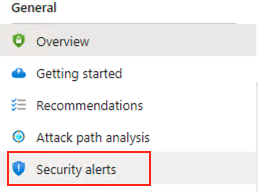
- Select Security Alerts: In the Defender for Cloud dashboard, go to the “Security alerts” section.
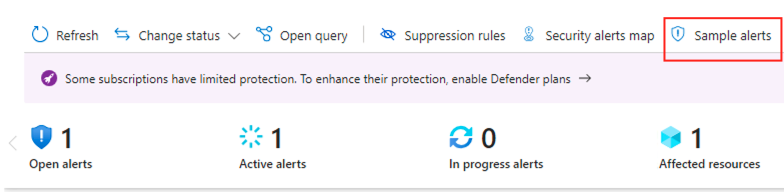
- On the top menu, select “Sample alerts”
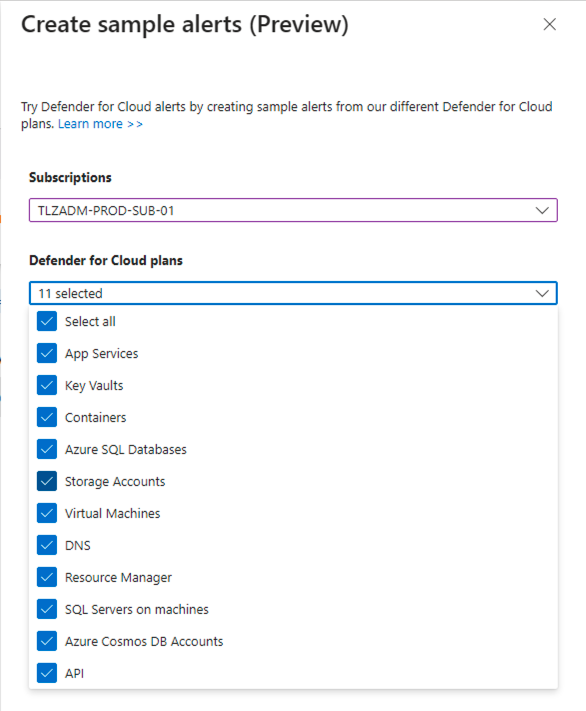
- From the “Sample alerts” menu, select your subscription and the “Different Defender for Cloud Plans”.
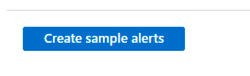
- After selecting the defender plans, click on “Create sample alerts”. Note that if you select all the Defender plans, Defender for Cloud will create a sample alert for each.
2. Wait a min or two for the alerts to start appearing in Defender for Cloud.
*Note: If you have Sentinel Setup with Defender for Cloud Integration you will get a few alerts triggered in Microsoft Sentinel as well. Before triggering these sample alerts inform the SOC Team.
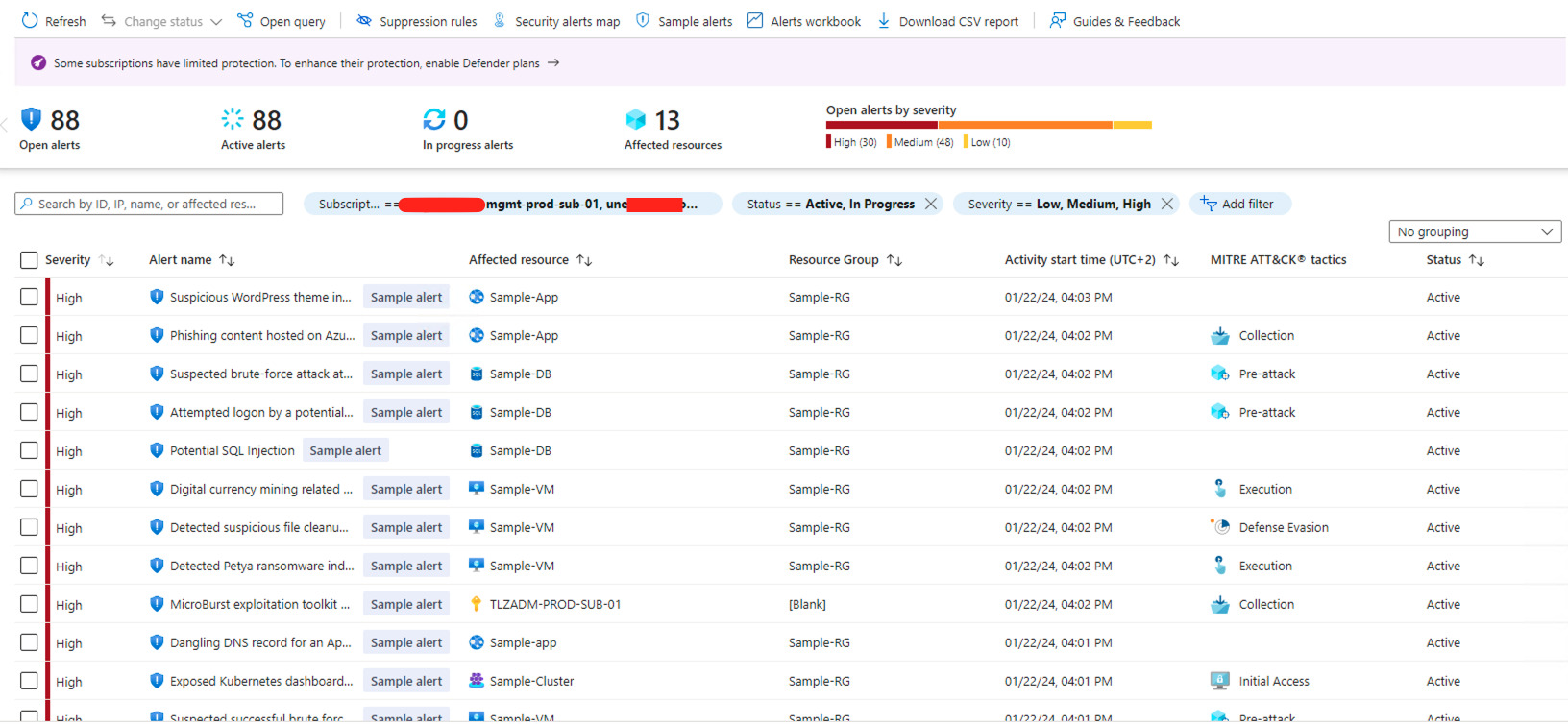
3. After selecting all Defender Cloud Plans, a total of 88 alerts has been generated, This number will vary depending on what you have configured in Microsoft Azure.
Conclusion
Creating and testing sample alerts in Microsoft Defender for Cloud is an essential step in setting up a robust security posture for your cloud environment. Regular testing and adjustment of these alerts ensure that you’re always prepared for potential security threats. Remember, effective security is an ongoing process of assessment and improvement.
Blog: www.thatlazyadmin.com